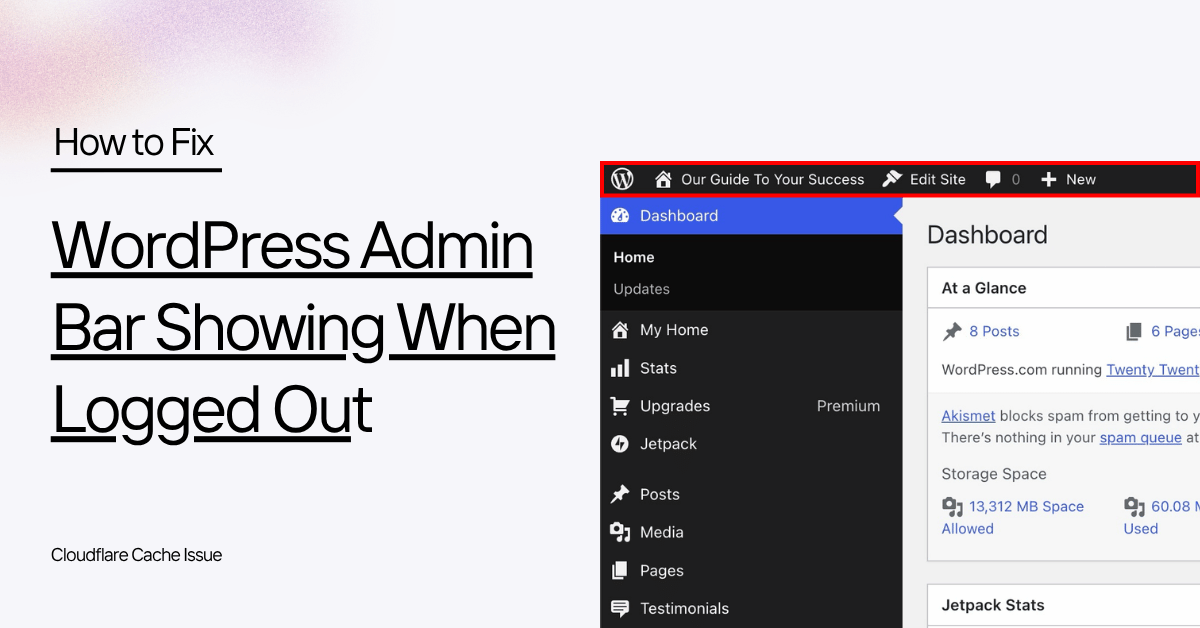
You push your staging site live and something feels off.
- The admin bar is visible to everyone, even logged-out users
- Clicking dashboard links leads to 404 pages
- The issue appears only on the homepage
- Other pages look normal
The Problem: WordPress Admin Bar Visible to All Users
You try the usual fixes:
- Clear browser cache
- Disable a plugin
- Hard refresh
Nothing changes.
Then you open the page without cache.
The site crashes with a critical error.
Now you’re dealing with two versions of the same page:
- One works
- One is broken
At this point, it’s not clear which one reflects reality.
Key Takeaway:
If your WordPress site only works when cached, the issue isn’t performance. It’s a hidden application error.
Why the WordPress Admin Bar Appears for Logged-Out Users
Most people assume:
- A permission issue
- A plugin exposing admin UI
- A role or capability problem
Those assumptions don’t match what’s actually happening:
- Only the homepage is affected
- The issue disappears when cache is bypassed
- The site fails when rendered dynamically
This is a multi-layer caching issue. It often gets mistaken for a WordPress bug because the symptoms show up in the UI.
Caching is not causing the problem. It is hiding it.
Step 1: Confirm It’s a Cache Issue
Before changing anything, verify what you’re looking at.
Use the ?nocache=1 Test
Open:
https://example.com/?nocache=1
If the admin bar disappears or the page behaves differently, you’re seeing cached HTML on the normal URL.
Check Response Headers
Open DevTools → Network → click the main request → Headers.
Look for:
cf-cache-status
x-cache
x-litespeed-cache
What they mean:
cf-cache-status: HIT→ served by CDN cachex-litespeed-cache: hit→ served by server cacheMISSorDYNAMIC→ request reached the origin server
This tells you where the response is coming from.
Step 2: How Cloudflare and Cache Plugins Cause This Issue
WordPress caching is layered. You are not dealing with a single system.
Layer 1: CDN Cache
Cloudflare can cache full HTML pages at the edge.
If “Cache Everything” is enabled, it will cache:
- Entire pages
- Logged-in states
- Admin UI
Layer 2: Server Cache
This includes:
- Nginx FastCGI cache
- Varnish
- LiteSpeed server cache
These can serve HTML before WordPress runs.
Layer 3: Cache Plugins
Plugins like:
- WP Rocket
- W3 Total Cache
- LiteSpeed Cache
generate static HTML and store it on the server.
Even if Cloudflare is configured correctly, a plugin can still serve a cached page that includes the admin bar.
In many setups, Cloudflare is simply delivering what the plugin has already cached.
Step 3: Why the Admin Bar Was Visible
Here is what happens in practice:
- You log into WordPress
- You visit the homepage
- A cached version of the page is created
- That version includes the admin bar markup
- The cached HTML is served to other visitors
WordPress is not exposing admin access. The cached HTML includes UI elements that should only appear for logged-in users.
Step 4: The Real Problem Behind the Cache
When you bypass the cache, the site shows a critical error.
That points to a server-side problem:
- A plugin error
- A missing file
- A PHP version mismatch
- An incomplete deployment
The cached version works because it avoids running the failing PHP code.
How to Fix WordPress Admin Bar Showing for All Users
Fixing only one layer will not solve it. You need to address both caching and the underlying error.
Fix 1: Prevent Caching for Logged-In Users
In Cloudflare, create a rule:
Condition:
Cookie contains wordpress_logged_in_
Action:
Bypass cache
Also exclude:
/wp-admin/wp-login.php- Custom login URLs such as
/team-access/
Fix 2: Clear All Cache Layers
Clear cache at every level:
- CDN (Cloudflare)
- Server cache
- Plugin cache (for example WP Rocket)
If any layer still holds the old HTML, the issue will continue.
Fix 3: Resolve the Critical Error
This is the actual fix.
Enable debugging in wp-config.php:
define('WP_DEBUG', true);
define('WP_DEBUG_LOG', true);
define('WP_DEBUG_DISPLAY', false);
Check:
/wp-content/debug.log
Look for:
- Plugin errors
- Missing files
- Incompatible PHP functions
Fixing this removes the dependency on cached output.
A Simple Debugging Framework
You can reuse this approach for similar issues.
- Observe the symptoms
- Bypass cache (
?nocache=1) - Check response headers
- Identify the cache layer
- Debug the origin
This reduces guesswork and speeds up diagnosis.
Common Causes After Staging to Live Push
This type of issue often appears after deployment.
Typical causes:
- Cached pages created while logged in
- Missing or partially deployed plugins
- PHP version differences
- Broken dependencies
- Domain mismatch (www vs non-www)
Final Takeaway
If your site works only when cached and fails without cache, the problem is not performance.
The problem is hidden in the application layer.
Caching is just delaying when you notice it.
FAQ
Because a cached HTML page created during a logged-in session is being served to all users.
It means Cloudflare is serving a cached response.
Because the underlying PHP execution fails when the page is rendered dynamically.
Leave a Reply