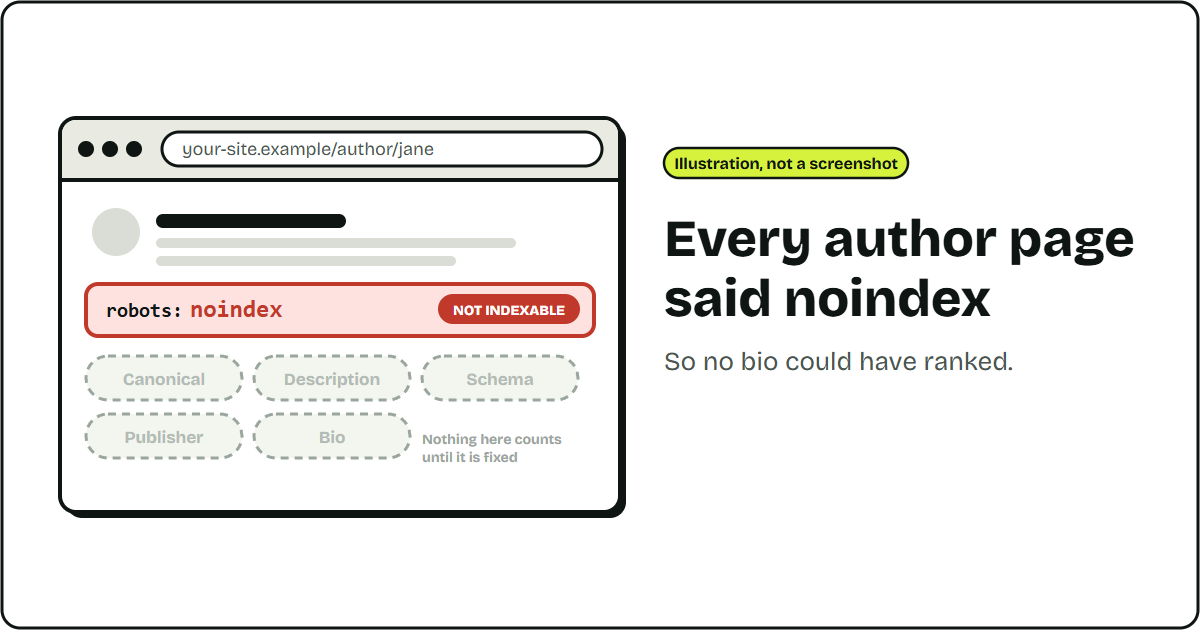
Short answer: before you write or polish an author bio, check that the author page can be indexed. Then check the canonical, the meta description, the Person schema and the publisher named in your markup. Copy comes last.
You search for an author’s name and their WordPress author page is nowhere in Google. The page may never have been allowed in. On one site I audited, every author page carried a noindex tag, so no amount of bio polishing could have helped. This is the order I check things in.
E-E-A-T stands for experience, expertise, authoritativeness and trust. Google describes it as a framework its quality raters use, not a single ranking factor. An author page is one place to show who stands behind the content.
Key takeaways
- Check first that the author page can be indexed, because if it says noindex nothing else on the list matters yet.
- Each author page should have a canonical pointing at itself and a short description written for a searcher.
- Person schema should carry what you can back up, such as job title, employer, expertise and approved profile links.
- Check which publisher the blog’s schema declares, so one domain does not end up with two.
- Indexable author pages and clean markup remove blockers but do not guarantee rankings or a rich result. Judge the work by whether the pages are indexed and attributed consistently.
What I found on the site I audited
- Every blog author page was set to follow, noindex, while a sister site’s author page on the same stack was indexable.
- The author pages had no canonical and no meta description.
- The Person schema held only a name, a URL and an image.
- The author photo was a default avatar with empty alt text.
- The blog’s publisher node was named after an admin email address, while the main site declared an Organization.
What you’ll need
- Access to your SEO plugin’s author archive settings
- A browser, to view the page source of an author page and a blog post
- The Schema Markup Validator
- Search Console access, to check the indexing status of the author URL
The checklist at a glance
| Check | How to check it | It passes when |
|---|---|---|
| 1. Indexable | Read the robots meta tag in the page source. Check the SEO plugin’s author archive setting and robots.txt. | There is no noindex, and robots.txt does not block the author path. |
| 2. Canonical and description | View the page source. | The canonical points at the page itself and a description written for searchers is present. |
| 3. Person schema | Paste the page into the Schema Markup Validator. | It has more than a name, URL and image, and every extra field is backed by a public source. |
| 4. Photo and alt text | Look at the page. | A real photo with a plain alt description, not a default avatar with empty alt text. |
| 5. Publisher identity | Validate one blog post and one main site page. | Both name the same Organization. |
| 6. Live page | Fetch the page fresh, not from a cache. | The markup matches the settings you changed. |
| 7. Bio claims | Compare each claim with a public source. | Every claim is sourced or marked as needing approval. |
1. Can the page be indexed?
Open an author page and read its robots meta tag. Check your SEO plugin’s author archive setting. Some plugins noindex author pages. If the page says noindex, nothing else on this list matters yet.
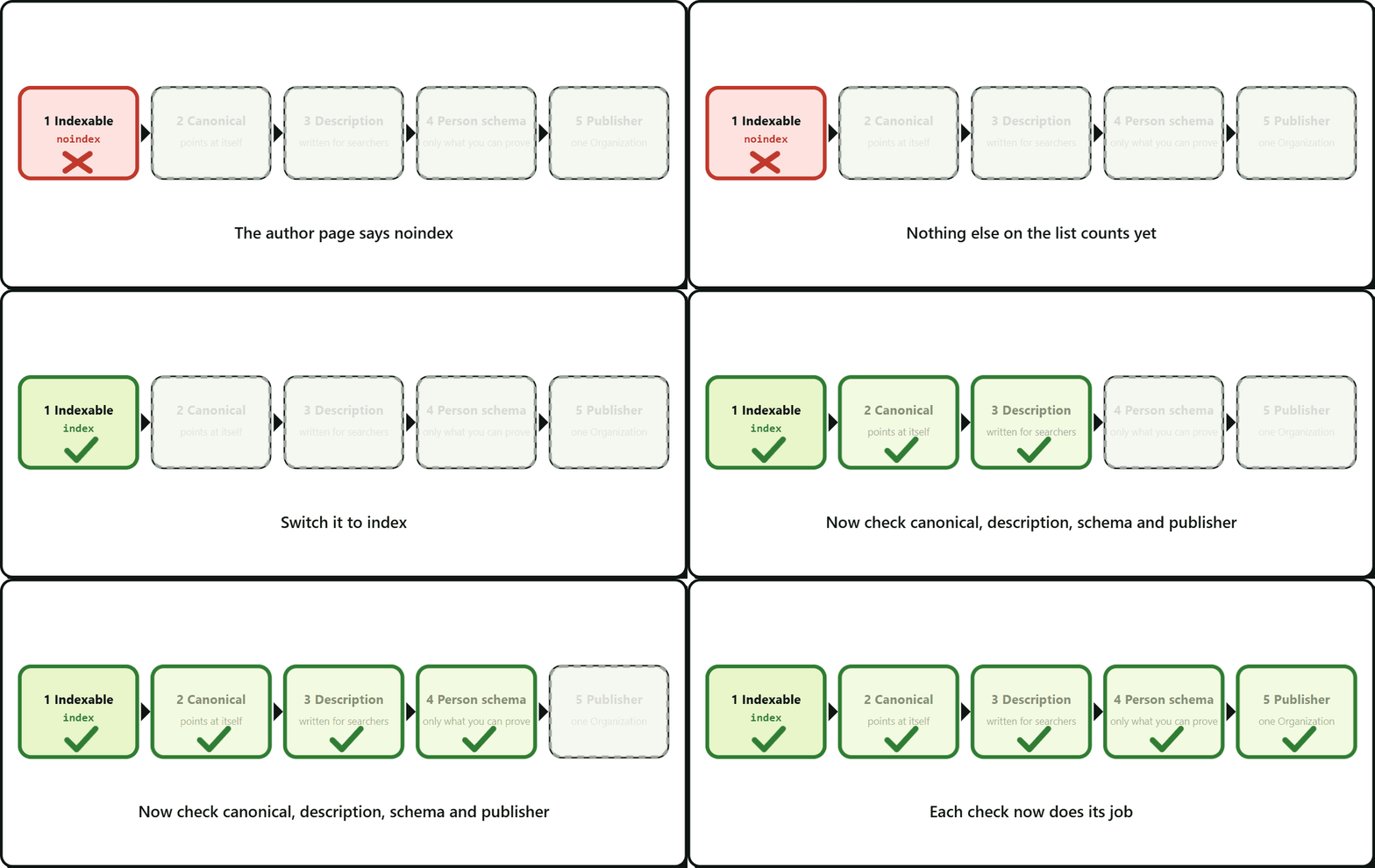
Check that robots.txt is not blocking the author path either. Crawl Stats in Search Console shows what Googlebot is actually requesting.
2. Does the page have a canonical and a description?
Each author page should have a canonical pointing at itself and a short description written for a searcher. Both were missing in my audit.
3. What should the Person schema say?
A bare Person with a name, URL and image says little. Add what you can back up:
- Job title and employer
- A short description
- Areas of expertise
- Profile links that belong to the person, where they approve them
Here is an example with placeholder values. Replace every field with something you can source:
{
  "@context": "https://schema.org",
  "@type": "Person",
  "@id": "https://example.com/author/jane/#person",
  "name": "Jane Example",
  "url": "https://example.com/author/jane/",
  "image": "https://example.com/photos/jane.jpg",
  "jobTitle": "SEO Specialist",
  "worksFor": {
    "@type": "Organization",
    "name": "Example Co",
    "url": "https://example.com/"
  },
  "description": "One or two sentences that match the visible bio.",
  "knowsAbout": ["Technical SEO", "WordPress"],
  "sameAs": ["https://www.linkedin.com/in/jane-example/"]
}
4. Does the author have a real photo and alt text?
A default avatar with empty alt text tells readers nothing. Use a real photo with a plain alt description.
5. Does the blog name the same publisher as the main site?
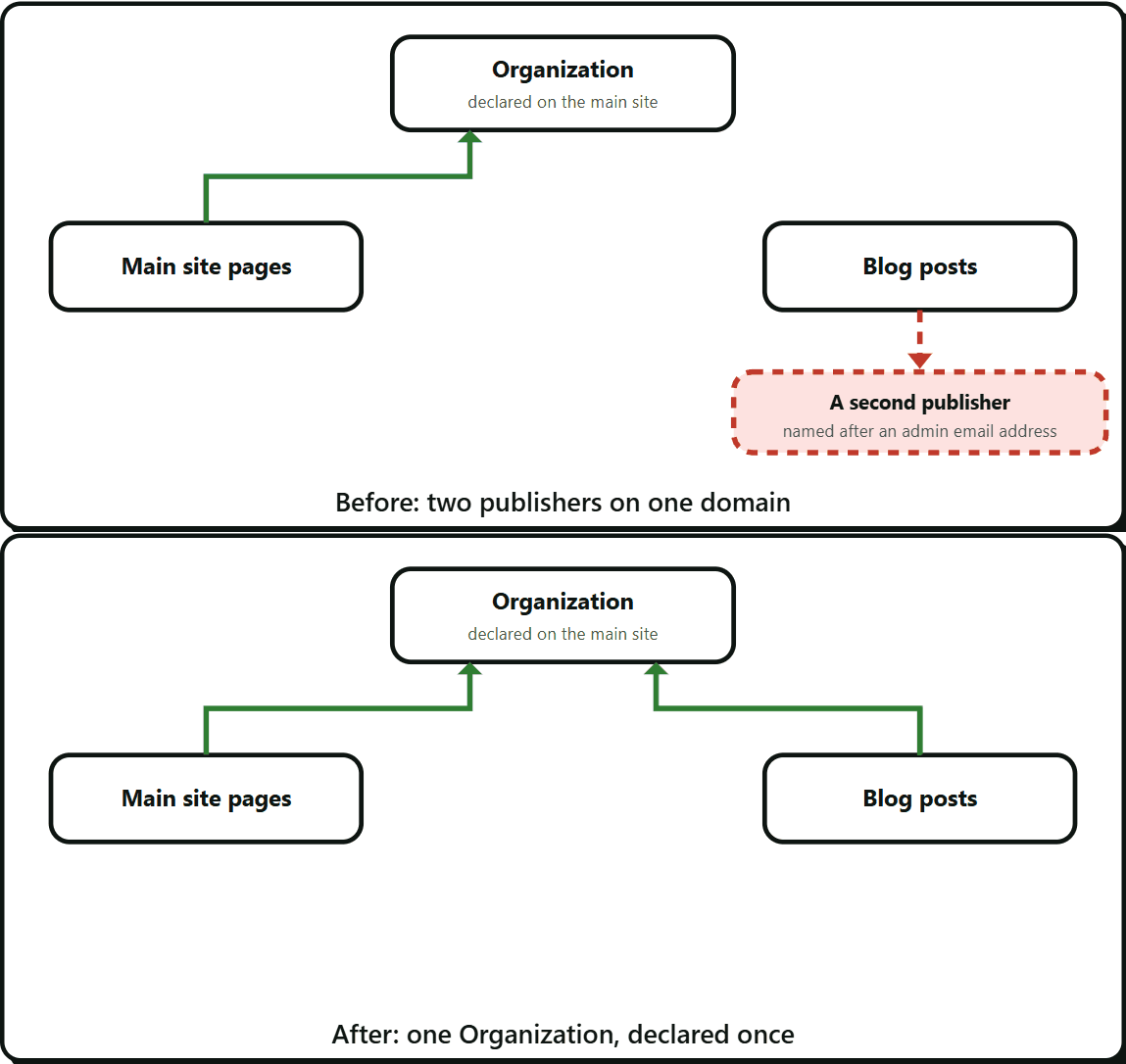
If your blog sits in a subdirectory of your main site, check which publisher its schema declares. In my audit the blog’s publisher node was named after an admin email address while the main site declared an Organization. That gave one domain two publishers, in every post’s markup. The fix is to point the blog at the same Organization, through a schema filter or the plugin’s settings.
A related mistake, where a subdirectory blog splits the brand’s identity in two, is covered in the subdirectory schema ID fix.
6. Check the live page, not the cache
Fetch the page fresh. A cached copy can show an old bio and hide a settings change. Then validate the Person and Organization markup in the Schema Markup Validator.
7. Verify every claim in the bio
Check each biographical claim against a public source. Mark anything unsourced as “from the person, needs approval” and keep it out until it is approved. If a number changes, such as a post count, record how to pull it so it is current when you publish.
Frequently Asked Questions About Author Pages
For the purpose of showing who is behind your content, yes. Indexability is the first check in my list, because if the page says noindex nothing else on it matters yet. Some SEO plugins noindex author pages by default, so check the plugin setting and robots.txt.
Should author pages be indexable?
Not as a single score. Google’s quality raters use it to judge content, and its ranking systems look at many signals. For an author page the practical goal is simpler: be indexable and be clearly attributed to a real person.
Is E-E-A-T a ranking factor?
Start with job title and employer, a short description, areas of expertise and profile links the person has approved. Step 3 has an example. Only include what a public source backs up.
What should go in Person schema for an author?
It varies, from days to weeks. After you remove noindex, inspect the author URL in Search Console, request indexing, and check its status there instead of waiting and guessing.
How long does it take for an author page to be indexed?
An author box helps readers, but it does not replace an indexable author page or matching markup. Check that the author page itself can be indexed and that the Person schema says what the visible bio says.
Leave a Reply